Build A Visual Brand In Podia
One of the biggest mistakes that creators can make when building their website is not focusing on the role that color plays in helping your website look polished and intentional. How you set up your colors creates a visual language that visitors begin to recognize and associate with you and your brand. This is called your visual identity.
Every section your visitors scroll through should feel like it belongs to the same company. Whether they're reading your About page, downloading a lead magnet, browsing your digital products, or enrolling in one of your courses, the colors should work together to create a positive and familiar customer experience and visual identity. Color consistency builds trust because visitors subconsciously recognize the distinct patterns and colors that you use across your content and assets. When every page and piece of content follows the same color language, your business appears authoritative, experienced and trustworthy.
Start By Planning The Color Scheme For Your Website
While it’s not imperative that you start with your color palette to build your Podia website, you should give some thought deciding how you want your colors to look across your site and all of your content. You want to ask yourself questions such as:
What color should all of my website's buttons be?
What color should visitors associate with clickable links and other clickable elements?
Will most sections on my site use an alternating light background with a dark background or will I use the same background across all sections?
Will I have specific colors that represent different pages such as a color for your shop page or a specific color for your About Me page?
How will background colors alternate as visitors scroll down each page?
What color should my headings always be?
Should pretitles and subtitles always share the same color throughout the site?
Answering these questions first creates your cohesive visual system that will instantly become recognizable when a visitor lands in your Internet home. All of your website pages (i.e., sales, landing, shop, and digital assets) don't need to look identical, but the visitor should know that they clearly belong to the same visual family.
Building Your Visual Brand
Once you've decided how you want your brand to look, it's time to translate those ideas into actual colors. Whether your business already has an established brand color scheme or you're creating one for the first time, the next step is identifying the colors you'll use consistently across every customer touchpoint.
If your business already has an established visual identity, this step is easy. You’ll want to gather the hex values for your existing brand colors and place them into a text document. Having these values readily available make it much easier to build your Global Color Palette and will ensure that you are using the exact same colors across your website, digital products, and marketing materials.
(Note) If you are unfamiliar with what a hex code is, it is a six-digit alphanumeric code that is used in web design and digital graphics to represent specific colors. The code is comprised of a hashtag (#), digits 0-9 and letters A-F.
If you have visual assets but do not have the specific hex codes available you can do one of the following:
Take an image that has all of your brand identity’s colors and upload that to Coolors.co. Coolors will extract the colors from the image and give you the exact codes to match your picture.
If you have digital materials with your brand’s colors, you can use a tool like ColorZilla and use the dropper to “sample” the color. The hex code will appear on the screen. Copy and paste that code into a text document. Repeat until you have all of your colors hex codes.
Then, you’ll be able to go to the Global Color Palette and select a Preset. When you do, the colors will appear as individual selections. Change the presets to your selected colors.
For example, I have pulled this color palette from Coolors.co.
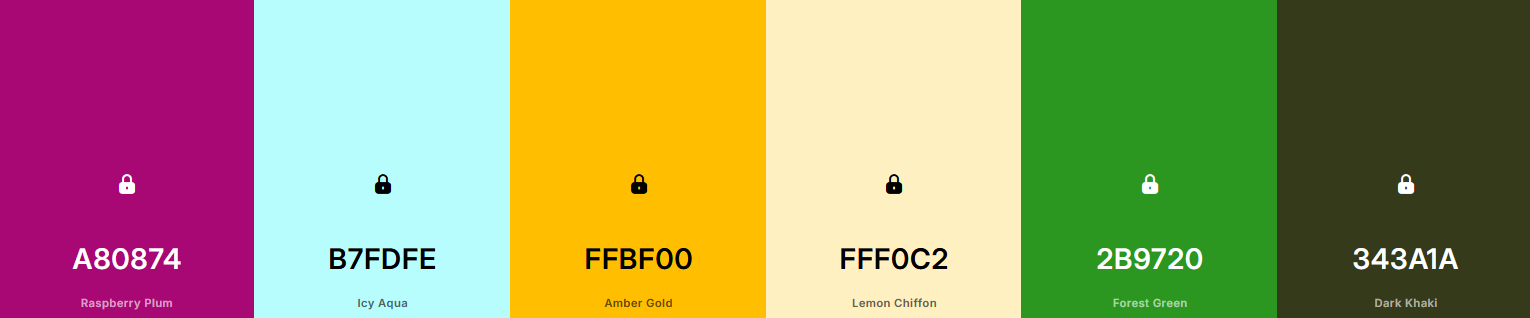
*I elected to only pick 5 or 6 colors for branding and I'll repeat #FFF0C2 twice.
From here I would take these hex codes and update the base preset colors.
Before you start updating the preset colors, you’ll want to ensure that they are optimally organized.
One of the advantages of Podia's Global Color Palette is that the six presets are reused throughout many areas of your website. That means choosing the order of your colors thoughtfully allows the built-in Section Themes to produce color layouts that are already very close to your desired branding before you begin making custom adjustments.
Here is a general representation of what the Accent and Shade Presets are linked to:
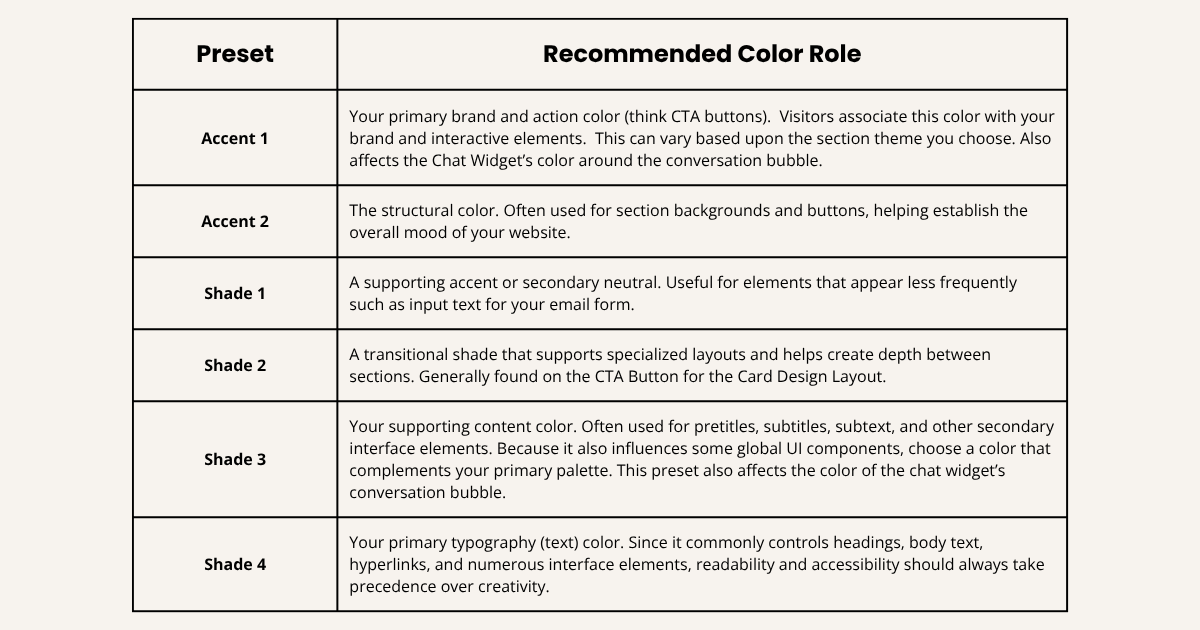
*While the Section Themes use these presets differently depending on the layout and section templates, organizing your Global Color Palette first creates a consistent starting point. From there, you can use the Custom Theme editor to fine-tune individual sections while preserving your overall visual identity.
Once the base color presets are updated, you’ll see the Section Themes Have been updated:
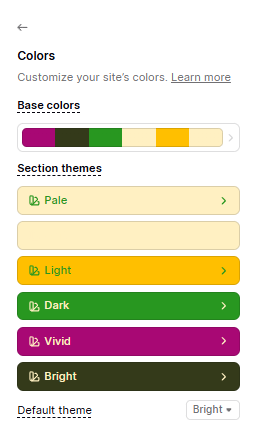
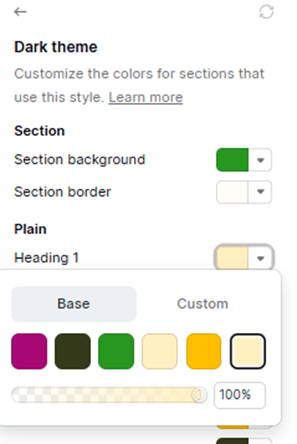
If you want to make individual changes to each of the Section themes, just click into each theme and update the colors. Since the colors are now in your presets, all you’ll need to do is to click on a setting color you want to change, and a box will appear with your colors. Select the color you want. If you need a color that isn’t represented (think the old hyperlink blue #0000EE) you can choose Custom and enter the hex code. Podia updates the colors on the spot and they are automatically saved.
Apply Theme Colors To Podia and Community
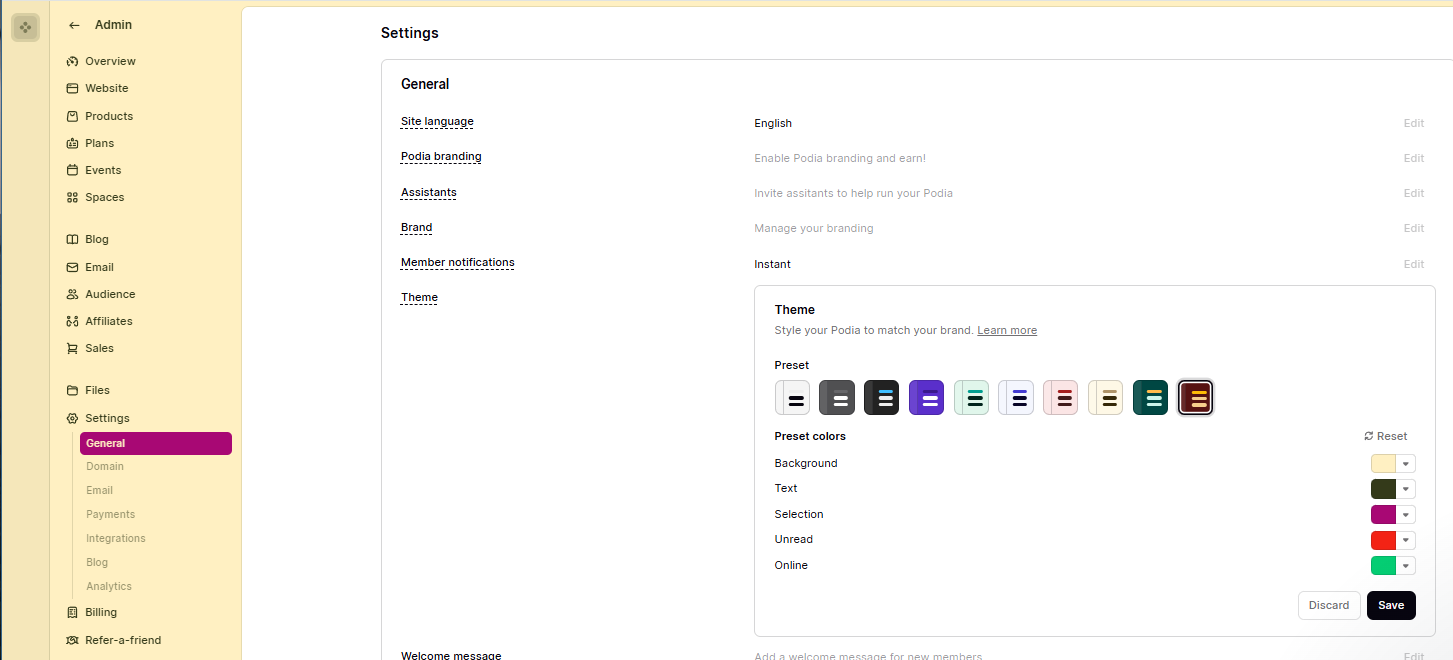
Podia also allows you to apply your theme colors across the platform and your community as well. You can do this by navigating to the Admin dashboard.
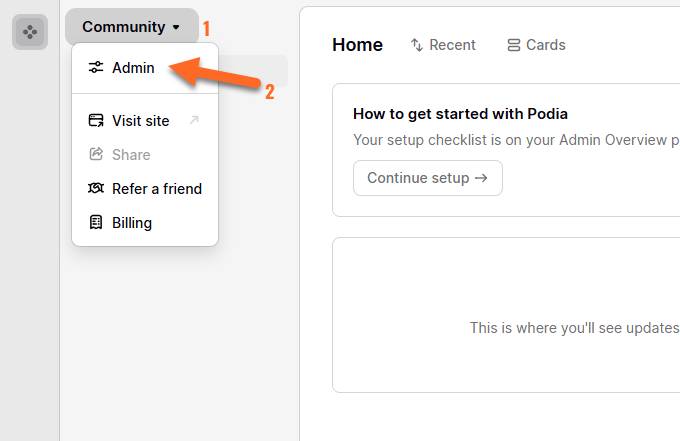
Once you are here, you'll need to access Podia's settings.
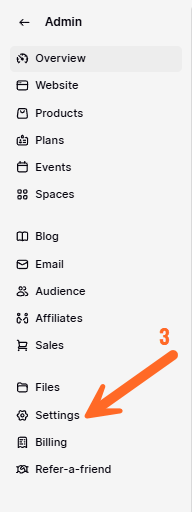
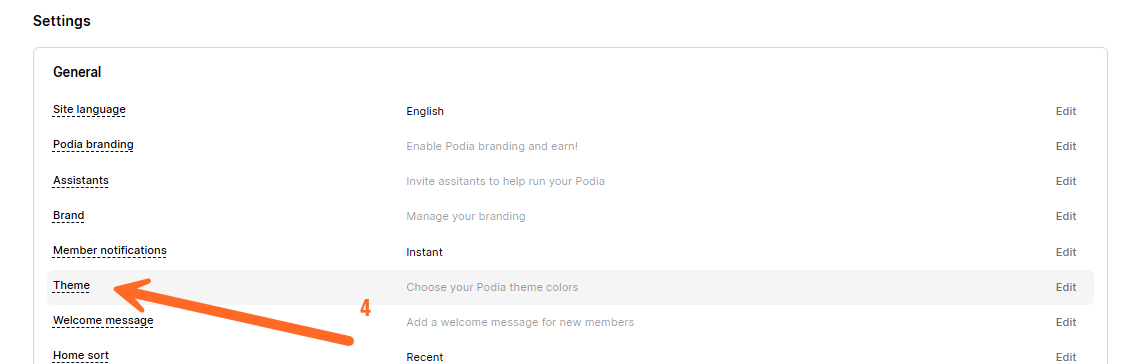
The right pane of your screen will change and you will see all of the categories that you can configure to setup your Podia platform to support your business. Click on Themes.
Here you will be able to make changes to Podia’s color scheme. You can select one of Podia’s Presets or you can select your colors that you have set from the previous section.
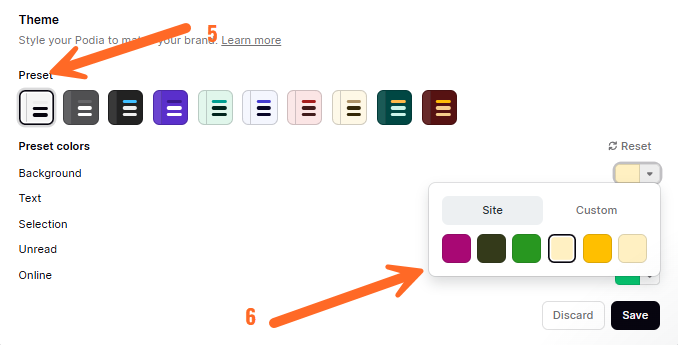
This makes it easy to control how the Podia platform looks and you're able to maintain that visual identity in your community.
You'll also want to check out this contrast color checker by Coolors.co that looks at the contrast ratio of text and backgrounds. This is super helpful for accessibility and ensuring that your site is viewable for all individuals!
Not Ready To Pick Colors? That's OK Too!!
If you're excited to start building your website and don't want to spend time planning your color palette just yet, that's perfectly okay! Podia includes several great professionally designed color palettes that pair beautifully with its built-in Section Themes. Choose the palette that best reflects the energy and vibe of your brand and start creating your content. You can always come back to customize your Global Color Palette later.
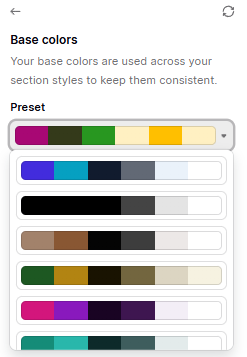
Don't feel pressured to get everything perfect the first time. Your brand will naturally evolve. As your business grows and your visual identity becomes more defined, you can always update your palette and refine individual sections using the Custom Theme editor.
A Final Thought....
Podia's Global Color Palette gives you a strong foundation for creating that consistency. By thoughtfully organizing your six base colors before you begin designing, you'll find that Podia's built-in Section Themes do much of the heavy lifting for you. From there, the Custom Theme editor becomes a tool for fine-tuning individual sections rather than redesigning every page from scratch.
Visitors may not remember the exact colors you chose, but they'll remember how your website made them feel. A thoughtfully planned Global Color Palette helps ensure that every page, every product, and every interaction reinforces the same visual identity—one that is cohesive, professional and unmistakably yours.
If you're ready to start building your website, courses, digital products, coaching programs, or community, explore Podia with a free 30-day trial and begin creating a brand experience your audience will recognize and remember.